
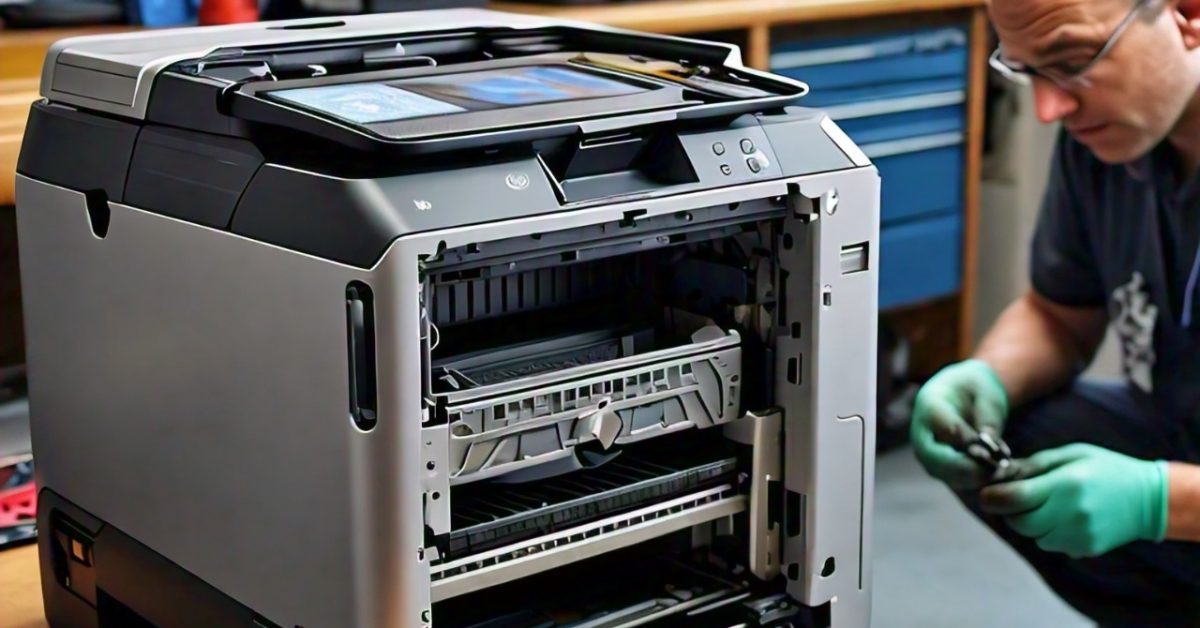
Embarking on Windows migration, drive installation, and printer setup involves a series of interrelated tasks that are essential for ensuring a smooth transition to updated technology, optimizing hardware performance, and establishing efficient printing capabilities within an organization. Each of these processes plays a crucial role in maintaining operational efficiency, enhancing system performance, and ensuring that technology infrastructure supports the evolving needs of users and business operations. By addressing these tasks comprehensively and methodically, organizations can minimize disruptions, maximize the effectiveness of their IT investments, and support a productive work environment.
Windows Migration
Windows migration involves transitioning from one version of the Windows operating system to another, such as moving from Windows 7 to Windows 10 or 11. This process is vital for taking advantage of new features, improved security, and better compatibility with modern applications. The migration process begins with a thorough assessment of the current IT environment. This includes inventorying hardware, software, and applications to determine compatibility with the new version of Windows. A detailed assessment helps identify any potential issues that may arise during migration, such as outdated drivers, incompatible applications, or insufficient hardware resources.
Once the assessment is complete, planning the migration strategy is crucial. This involves deciding whether to perform an in-place upgrade, where the existing OS is replaced while preserving user data and settings, or a clean installation, which involves installing the new OS on a fresh system and migrating user data manually. An in-place upgrade is generally less disruptive but may carry over existing issues, whereas a clean installation ensures a fresh start but requires additional steps for data and application migration. Regardless of the chosen method, creating a comprehensive backup of all critical data is essential to safeguard against potential data loss during the migration process. Backup solutions may include full system images, incremental backups, or cloud-based options, depending on the organization’s needs and resources.
The installation of the new OS involves booting from installation media, such as a DVD or USB drive, and following the setup prompts to configure essential settings like language preferences, time zones, and disk partitioning. For organizations, this may also involve configuring network settings, domain membership, and applying group policies to ensure consistency across all systems. Once installed, the new OS must be tested to ensure that all applications and services are functioning correctly. This testing phase involves verifying that all critical applications are compatible with the new OS, checking user profiles, and ensuring that network connectivity and security settings are properly configured. Post-migration support and training are also crucial to help users adjust to the new OS and address any issues or questions that arise during the transition.
Drive Installation
Drive installation involves adding or replacing storage drives in a computer or server to enhance performance, increase storage capacity, or replace failing hardware. This process is integral to maintaining optimal system performance and ensuring that data storage needs are met. The installation process begins with selecting the appropriate type of drive based on the system’s requirements. Common drive types include hard disk drives (HDDs), solid-state drives (SSDs), and hybrid drives. HDDs offer larger storage capacities at lower costs but are generally slower than SSDs. SSDs provide faster data access speeds and improved reliability but come at a higher cost per gigabyte. Hybrid drives combine features of both, offering a balance between performance and cost.
Physical installation of the drive involves mounting the drive into the designated bay or slot within the computer or server. For desktop systems, this typically involves securing the drive with screws or brackets and connecting it to the motherboard and power supply using SATA or NVMe connectors. In server environments, drive installation may also involve configuring the drive within a RAID (Redundant Array of Independent Disks) setup to provide redundancy and improve performance. RAID configurations, such as RAID 1 for mirroring or RAID 5 for striping with parity, offer different levels of data protection and performance enhancements.
After physically installing the drive, it must be initialized and formatted to prepare it for use. This process involves partitioning the drive and setting up a file system, such as NTFS or FAT32, depending on the operating system and intended use. Proper formatting ensures that the drive is correctly recognized by the operating system and ready for storing data. If replacing an existing drive, data migration is a critical step. This may involve cloning the old drive to the new drive using specialized software or manually transferring files. It is essential to verify that all data is successfully migrated and that the new drive is functioning correctly before decommissioning the old drive.
Printer Setup
Printer setup involves configuring printers to ensure they are operational and accessible to users within the organization. This process includes physical installation, driver and software installation, and configuration of printer settings. The initial step in printer setup is physical installation, which involves unpacking the printer, assembling any required components, and placing it in a suitable location. For network printers, this involves connecting the printer to the network via Ethernet or Wi-Fi. For USB printers, this involves connecting the printer directly to a computer using a USB cable.
Once the printer is physically installed, the next step is to install printer drivers and software. Drivers are essential for enabling communication between the printer and the computer, ensuring that print jobs are processed correctly. Most modern printers come with installation CDs or downloadable drivers from the manufacturer’s website. During installation, users may need to select the appropriate driver version based on the operating system and follow the prompts to complete the setup. Additionally, installing printer management software can provide advanced configuration options and monitoring capabilities.
Configuring printer settings is crucial for optimizing printer performance and meeting user needs. This includes setting up default preferences, such as paper size, print quality, and duplex printing options. For network printers, it may also involve configuring network settings, such as IP address and network protocols, to ensure that the printer is accessible to all intended users. Testing the printer setup involves printing a test page or sample document to verify that the printer is functioning correctly and that print quality meets expectations. Users should be trained or provided with documentation on how to use the printer, including how to load paper, replace ink or toner cartridges, and troubleshoot common issues.
In summary, the processes of Windows migration, drive installation, and printer setup are interconnected aspects of IT management that require careful planning, execution, and ongoing maintenance. Windows migration ensures that systems are up-to-date with the latest OS features and security enhancements, while drive installation optimizes storage performance and capacity. Printer setup establishes efficient printing capabilities, supporting user productivity and operational efficiency. By addressing each of these tasks comprehensively, organizations can enhance their technology infrastructure, minimize disruptions, and support a productive and secure work environment.